Void one invoice, then repeat
These are the steps from Xero's help centre. They work for any sales invoice in the Awaiting Payment status.
- In the Sales menu, select Invoices.
- Find and open the invoice. Use Search if you know the contact's name or the invoice amount.
- Click the menu icon, then select Void.
- Click Void to confirm.
Then go back to the list and open the next one. Xero only voids invoices that are awaiting payment. Draft and Awaiting Approval invoices are deleted instead, and Xero lets you delete those in bulk.
A voided invoice can't be reinstated or restored. It stays in Xero as a record: on the All tab, search and tick Include Deleted & Voided to find it.
Why there is no bulk void for sales invoices
Xero's help centre says it plainly: "You can't void awaiting payment invoices in bulk, you need to void them individually." Its article on approving invoices in bulk gives the same warning from the other side: check the details before you approve a batch, because you can only edit or void approved invoices one at a time.
Other Xero lists work differently. On the Bills list you can tick Awaiting Payment bills and void them together. See bulk void for bills vs sales invoices for the full comparison.
People have asked for the same on sales invoices since May 2022. The request on Xero's Product Ideas forum has more than 250 votes and is marked Accepted. On 28 November 2025 Xero replied that it is "not a feature we have planned at this stage", and suggested its API to people with technical resources. The reply doesn't give a reason.
Before you void a batch
- Check that voiding is the right fix. Xero suggests editing an invoice you haven't sent yet, and issuing a credit note for a sent invoice that needs correcting, so you and your customer keep an audit trail. Awaiting Payment invoices can be edited.
- Remove payments first. For a paid or part-paid invoice, delete the payment with Remove & Redo and the invoice goes back to Awaiting Payment. A payment deleted this way can't be restored.
- Export a backup. On the Awaiting Payment tab, click Export to save the invoices as a CSV file. One export holds up to 500 transactions, so export a longer list in batches.
- Check the period. If the invoices fall in a period you've already filed, talk to your accountant before you change anything.
Three ways to void many invoices
Once you know which invoices have to go, pick the method that fits the size of the batch.
1. Repeat the steps by hand
Free, with nothing to install or connect. Every invoice takes the same four steps, so the time grows with the batch. Fine for a handful, slow for hundreds.
2. Use the Xero API
Through Xero's API, an approved invoice (status AUTHORISED) can be changed to VOIDED. Someone has to add an OAuth 2.0 app, connect it to your organisation, then write and test the script. Worth it if you have that person, or if you expect to do this again.
3. Use a browser extension
Bulk Void for Xero is a Chrome extension that repeats the void steps for you, inside your own Xero session. You narrow the Awaiting Payment list to the batch and tick the invoices; it does the clicking.
What Bulk Void does
- Saves a backup CSV of the whole batch before it starts: number, contact, date, amount and reference.
- Shows a dry run of which invoices will be voided and which will be skipped.
- Asks you to type the number of invoices to confirm.
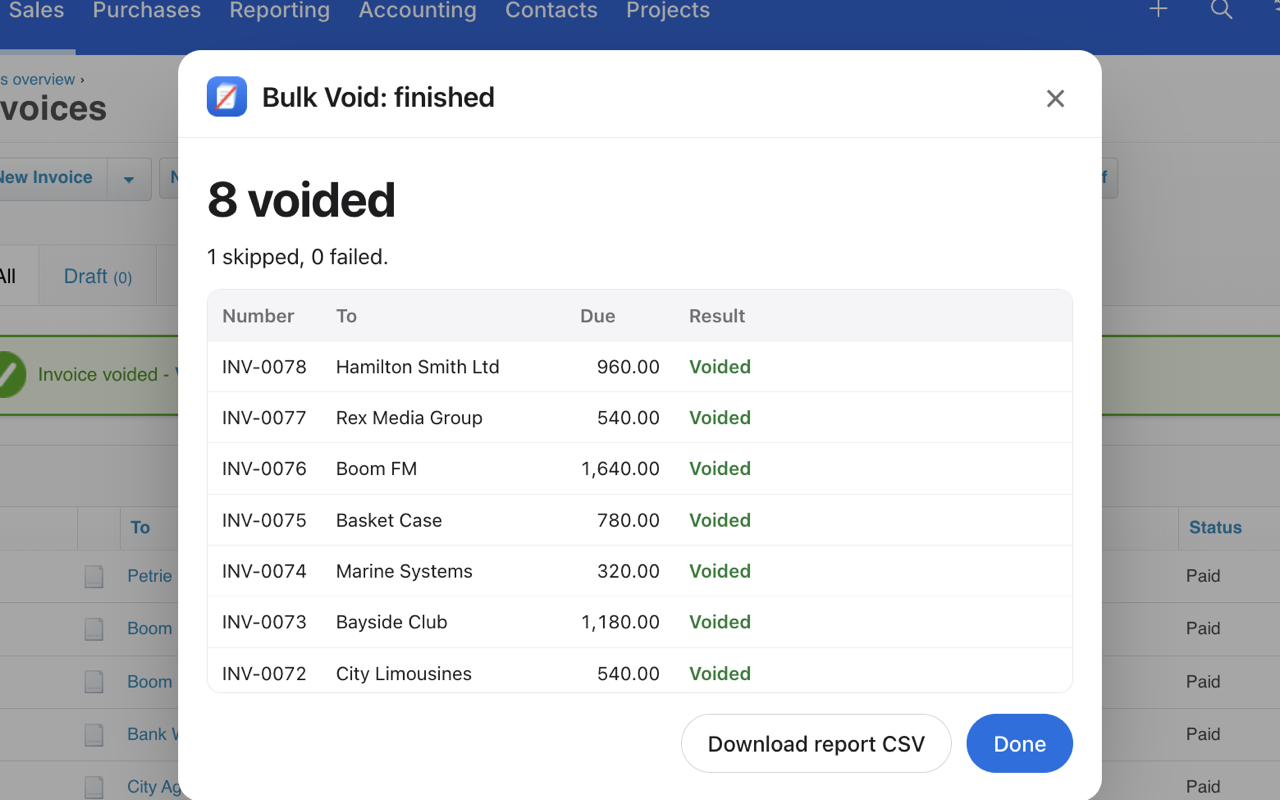
- Voids them one after another, at a human pace, and ends with a report: voided, skipped, failed.
It only voids invoices with no payments or credit notes applied; the rest are skipped and listed in the report. It doesn't connect to the Xero API, and your invoice data stays on your computer. It's free for your first 5 invoices, then $29 per Xero organisation.
See how Bulk Void worksThe three options side by side
| Option | By hand | Xero API | Bulk Void |
|---|---|---|---|
| Setup | None | An OAuth 2.0 app, a connection and a script | Install a Chrome extension |
| Work per invoice | Four steps | None once the script works | None after you confirm |
| Backup first | Export it yourself | Up to your script | Saved before the run |
| Cost | Free | Developer time | 5 invoices free, then $29 per organisation |
Questions
Can I select several invoices and void them at once in Xero?
Not sales invoices. Xero says awaiting payment invoices can't be voided in bulk and must be voided individually. Bills are different: you can void Awaiting Payment bills in bulk.
Why can't I void an invoice in Xero?
Xero only voids invoices that are awaiting payment. Delete a draft or awaiting approval invoice instead, and remove the payment from a paid invoice before you void it.
Can a voided invoice be restored?
No. Xero says voided invoices can't be reinstated or restored. To re-create one, copy the voided invoice or create a new invoice.
Can I reuse the number of a voided invoice?
No. If you need the number again, change it on the invoice before you void it. The number of a deleted draft or awaiting approval invoice can be reused.