Back up the batch first
Export the invoices before you remove anything. A voided invoice can't be restored, so the file is your record of what was there.
- In the Sales menu, select Invoices.
- Open the tab the imported invoices are on.
- Optional: click Search and pick a start date, end date or date type to narrow the list.
- Click Export.
One export holds up to 500 transactions, so export a bigger batch in parts. Each invoice line comes out as its own row, which Xero says keeps the file in the format it needs to import invoices back in.
Find the imported invoices
Xero imports invoices from a CSV file as drafts, which you then approve. So start on the Draft tab. If someone has approved them since, look on Awaiting Payment.
Invoices that came from an integration rather than a file may be in another status. Xero's developer docs say an app can choose the status when it creates an invoice, and an approved one goes straight to the Awaiting Payment tab. An accountant using Xero's Conversion Toolbox can also import invoices as approved, or approved and paid.
To narrow the list, search by contact name, amount or date. For a duplicate import, remember that Xero doesn't import an invoice whose number already exists, so duplicates that did get in have different numbers from the originals. Compare contact, date and amount, and remove the copies, not the originals.
Delete the drafts in bulk
- In Sales, Invoices, open the Draft or Awaiting Approval tab.
- Tick each imported invoice.
- Click Delete and confirm.
Drafts and invoices awaiting approval don't create journals, so they aren't in your reports yet. That makes deleting them the cleanest undo. Deleted invoices can still be found later: on the All tab, search and tick Include Deleted & Voided.
Void the ones already approved
Approved invoices create journals, so they already show in your reports. Xero only deletes draft and awaiting approval invoices; approved ones have to be voided, and Xero voids awaiting payment invoices one at a time.
If an invoice has a payment, remove it first with Remove & Redo and the invoice returns to Awaiting Payment. A payment deleted this way can't be restored, but its bank statement line stays so you can reconcile it again.
For a few invoices, void them by hand: open each one, click the menu icon, select Void and confirm. For a large batch, how to void multiple invoices in Xero compares the options: by hand, the Xero API or a browser extension.
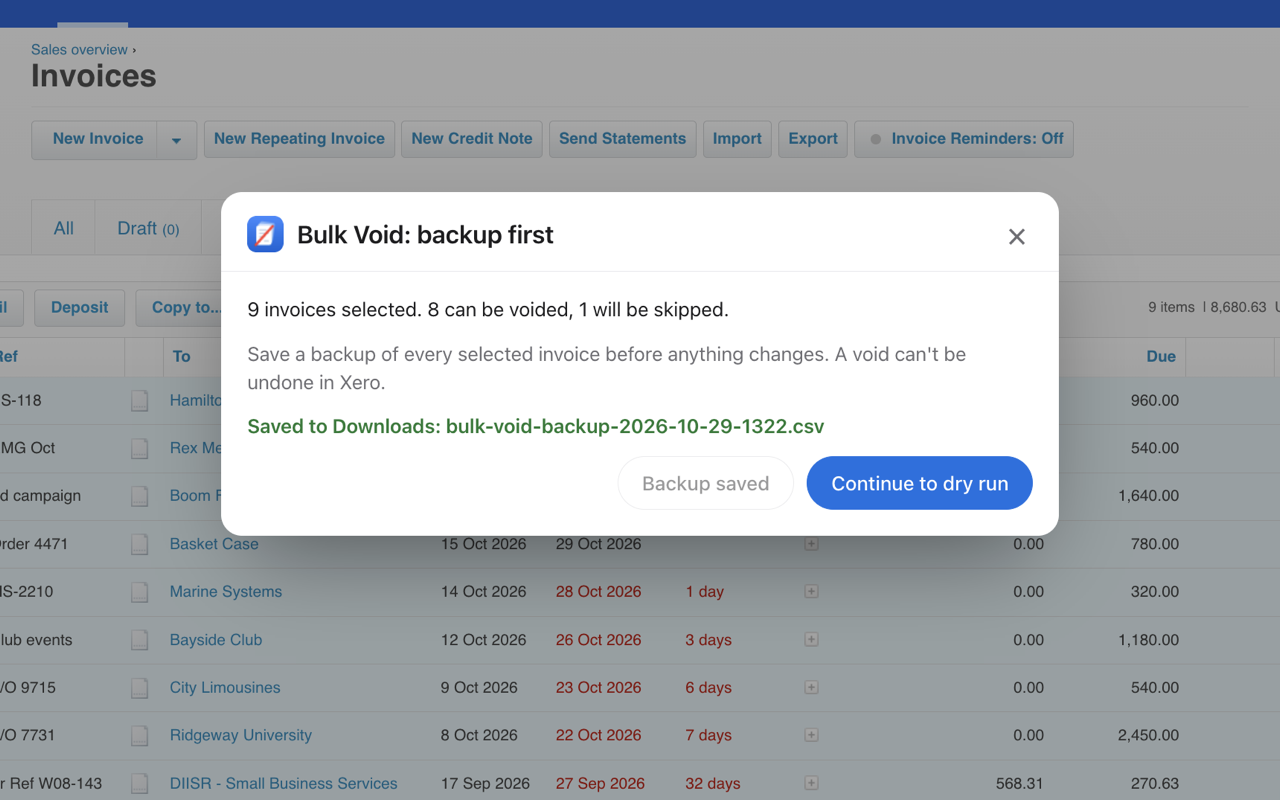
Bulk Void for Xero
- A Chrome extension that voids a batch of Awaiting Payment sales invoices for you.
- Saves a backup CSV of the batch first, then shows a dry run of what will be voided and skipped.
- Skips invoices with payments and lists them in the final report.
It runs in your own browser, without a Xero API connection. It's free for your first 5 invoices, then $29 per Xero organisation.
See how Bulk Void worksWhat happens to the invoice numbers
Deleted invoices free their numbers
The number of a deleted draft or awaiting approval invoice can be reused, so after a bulk delete the corrected invoices can keep the same numbers.
Voided invoices keep theirs
Once an invoice is voided, its number can't be reused. If you need it again, edit the invoice and change the number before you void it; Awaiting Payment invoices can be edited. Otherwise give the corrected invoices new numbers.
Resetting the next number
To make new invoices continue from where you were before the import, go to Sales settings, Invoice settings, Default Settings and set the Next Number. You need the administrator or standard user role.
Import the corrected file
Fix the file, then import it again from Sales, Invoices, Import. Review the import message: if Xero lists errors, click Go Back, fix them and import again; otherwise click Complete Import. Xero recommends no more than 500 items in a single file.
Check the drafts before you approve them. Xero's advice for bulk approval is to make sure the details are correct first, because you can only edit or void approved invoices one at a time. Back in 2022, Xero's community manager made the same point on its Product Ideas forum: imported invoices should come in as drafts, which you can delete in bulk.
Questions
Can you undo an invoice import in Xero?
Xero's help centre doesn't describe an undo for imports. Remove the imported invoices instead: delete them in bulk while they're drafts, and void approved ones one at a time.
Do imported invoices come in as drafts?
Yes, when you import a CSV file from Sales, Invoices, Import. Invoices created by an integration or by Xero's Conversion Toolbox can arrive already approved.
Can I reuse the invoice numbers after removing the import?
Yes for deleted draft and awaiting approval invoices. No for voided invoices, unless you changed the number on the invoice before you voided it.
Can I get back invoices I removed by mistake?
Voided invoices can't be restored. Find deleted or voided invoices on the All tab with Include Deleted & Voided ticked, then copy them to re-create them.